MYOB - Offline backups of your company files

MYOB - Offline backups of your company files

Create an offline backup of your company file
Backing up and restoring company files
Restore an offline backup of your company file
Create an offline backup of your company file

Create an offline backup of your company file

You can create an offline backup your company file to save a copy of the file for record retention or to refer to the data at any time. The backup contains a snapshot of your company file as at the point you create the backup.

You'll typically keep your offline backups in a safe location, like an external hard drive, another computer or online.

If your company file is online, your data is already safe in the cloud. This means you'll typically only create an offline backup at key times, like EOFY, to create a handy snapshot of your data that you can retain or refer to later. You might also take an offline backup before making significant changes, like importing data, so you have a rollback option by restoring the backup if things don't go to plan.


Turn on the offline backup setting

There's an AccountRight preference that controls whether you want to use online or offline backups. You can switch the preference on or off whenever you like, depending on the type of backup you want to create or restore. If your company file is online, the automatic weekly online backups are created regardless of this preference. More about online and offline backups

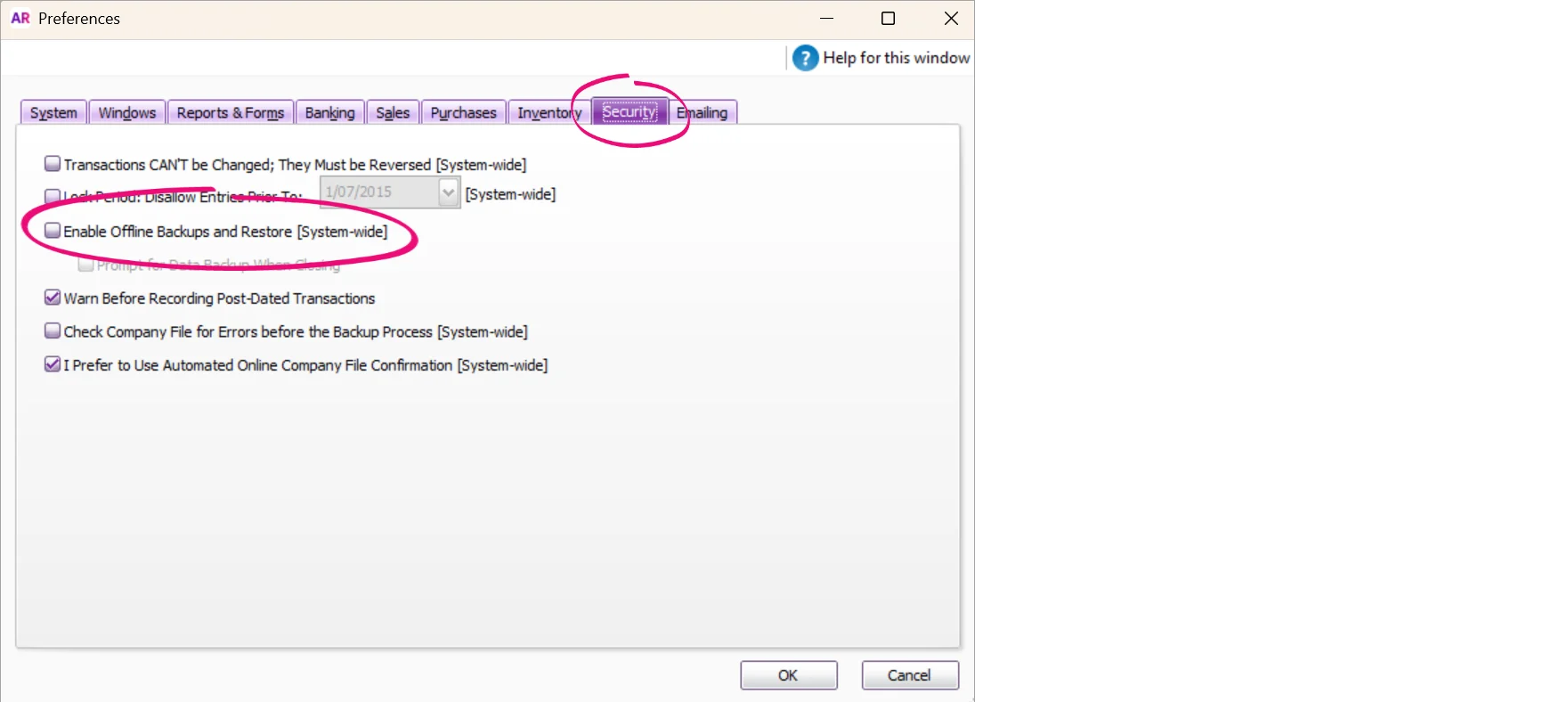
  1. Go to the Setup menu > Preferences > Security tab.

  2. Select the option Enable Offline Backups and Restores. This means your back up and restore processes will be offline. You can re-select this option any time if you want to create or restore an online backup.

  3. Click OK.

Example preferences window with offline backup preference highlighted

When you enable offline backups, you can also select the option Prompt for Data Backup when Closing. This is handy if you want to be reminded to take an offline backup each time you close your company file.

Create an offline backup

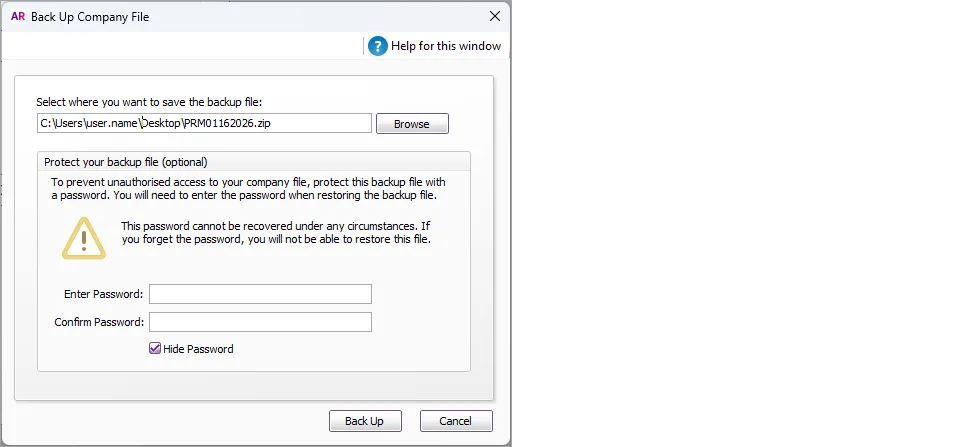
  1. Go to the File menu and choose Backup. If you don't see the window shown here, make sure you've turned on the preference mentioned above.
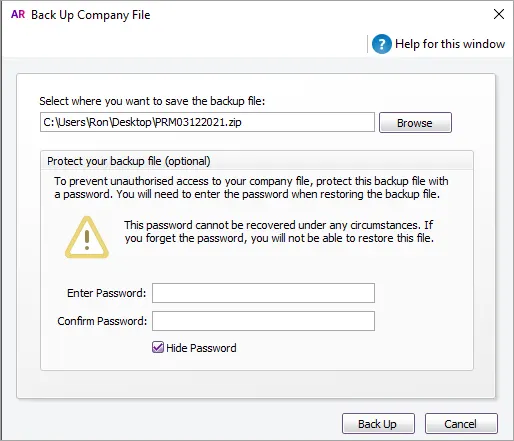
    Back up compand file window

    A default filename of MYOBmmddyyyy.zip is assigned, but you can change this if you like.

    • mmddyyyy is the month, day and year

    • .zip is the file extension and cannot be changed.

  2. Click Browse and select where you want to save the backup file. If you want to save the backup on a removable USB drive, we recommend saving it to your computer first, then copying it to the USB drive.

  3. If you want to protect the backup from unauthorised use, enter and confirm a password. This password will need to be entered when restoring the offline backup file.

  4. Click Back Up.

  5. (Online company files only) A list of all users, including you, currently signed in will appear so you can let them know to save their work and sign out. Once you're ready to go, click Start the backup
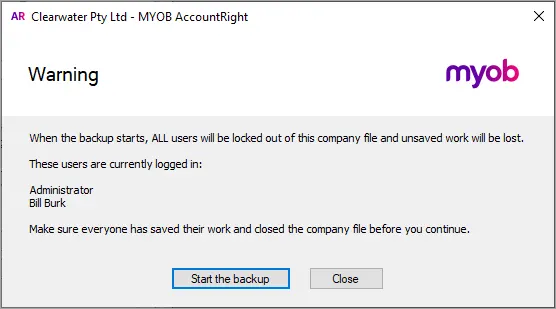
    Back up user warning
Backing up and restoring company files

Backing up and restoring company files

Backing up means taking a point-in-time snapshot of your company file. It's mainly a safeguard in case you need to restore your company file to an earlier state if something goes wrong. Or, you can create a backup for record-keeping to retain historical data.

If your company file is online, there are two types of backup and a setting that lets you choose which one you want to use. If your file is offline, you can only create and restore offline backups.

Online backups let you roll back to a point in time

Online company files only

Each week, MYOB automatically backs up online company files that have had changes in the previous 7 days. It means you can relax knowing we're saving regular point-in-time versions of your online company file that you can roll back to if needed.

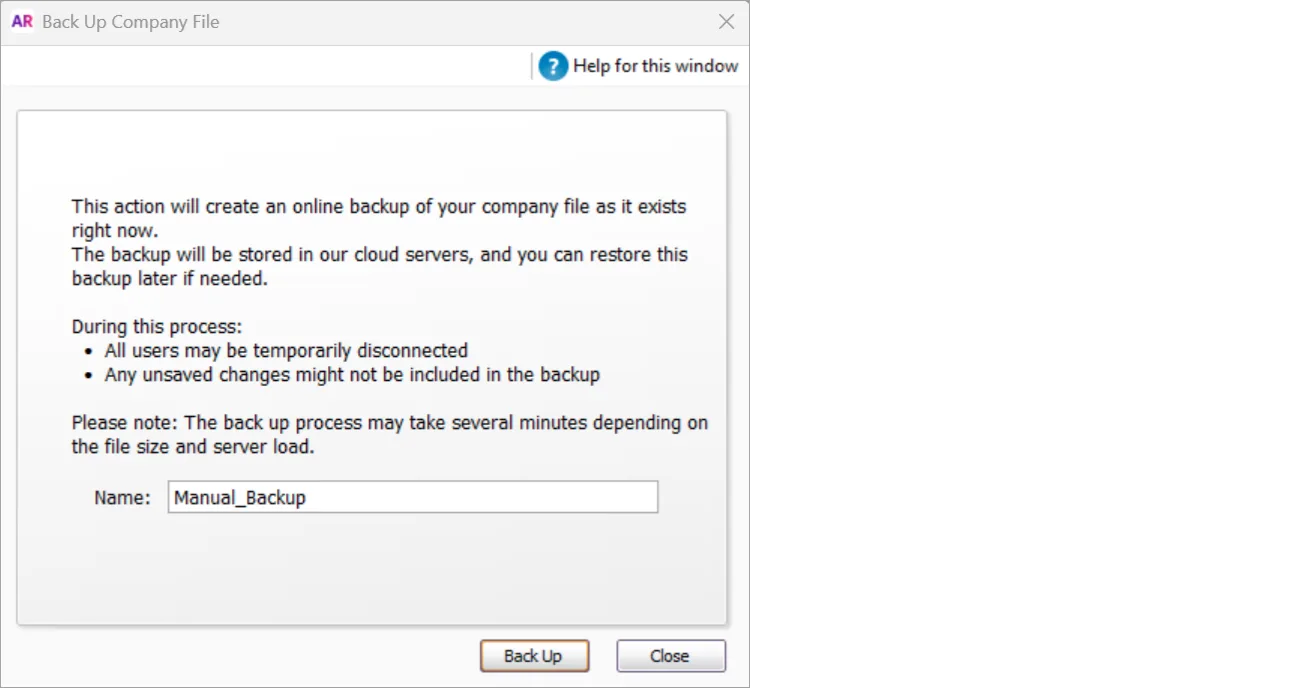
You can also manually create online backups whenever you like and name them appropriately. These will be accessible along with the automatically created ones.

Example window for creating an online backup

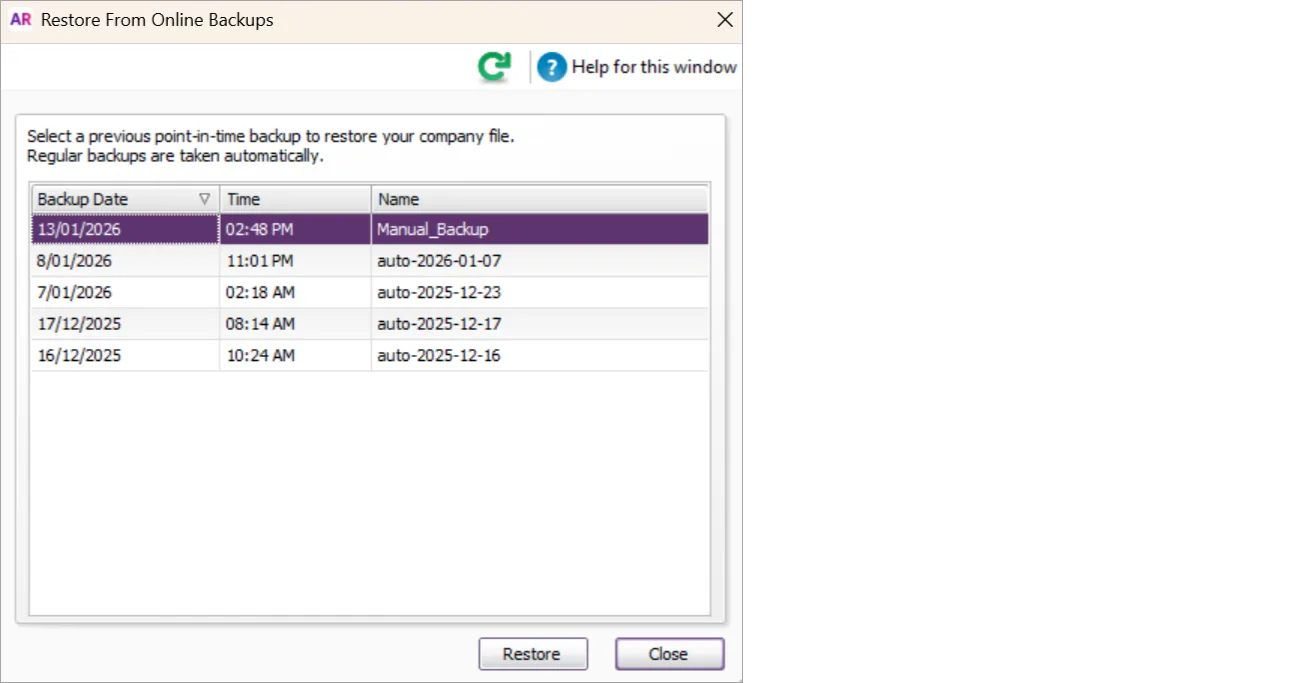
Online backups are stored securely in the cloud for 6 months, on the same servers we use to store online company files. If anything goes wrong in your company file, like an import that didn't go to plan, you can roll back your company file to the point-in-time the online backup was created.

Example window showing the list of online backups

More about creating online backups

Offline backups are point-in-time copies of your file

Use offline backups to retain historical versions of your file that you can refer to later or roll back to if something goes wrong.

Creating offline backups is a manual process, so it's up to you how often you do it. You might take an offline backup at key times, like EOFY, to create a handy snapshot of your data that you can retain or refer to later.

You can take an offline backup at any time and save the backup file on your computer, an external drive or another secure location.

You can password protect an offline backup, which means the password will be required to restore the backup.

Example window for creating an offline backup

You might also take an offline backup before making significant changes, like importing data, so you have a rollback option if things don't go to plan. There's also a preference you can set to display a backup reminder each time you close AccountRight.

Offline backups can be restored to an AccountRight library on your computer or in a network so you can view a copy of your company file as at the backup date.

If your company file is online, you can also restore an offline backup over the top of your company file – to replace (roll back) your current company file.

More about creating offline backups

Tips for backing up offline

Choose your backup option in Setup > Preferences

Online company files only

You can change this setting any time. The automatic weekly online backups will happen regardless of this setting.

  1. Go to the Setup menu > Preferences.

  2. Click the Security tab.

  3. If you want to create offline backups, select the option Enable Offline Backups and Restore. If this preference is deselected, manually created backups will be saved online.

Example preferences window with offline backup preference highlighted

We'll still automatically back up your online company file

Regardless of this setting, MYOB will still automatically back up your online company file each week (provided there has been some activity in the file). However, to access your automatic backups you'll need to deselect the setting.

Restoring a backed up company file

Restoring is how you open a backed up copy of your company file (File menu > Restore). Here's what happens when you restore a backup:

  • if it's an online backup, your current online company file will be replaced with the backed up version. This can't be undone. More about restoring online backups

  • if it's an offline backup, you can choose to restore the backup:

    • in an AccountRight library on your computer or in a network location. This lets you view a copy of your company file as at the backup date. This doesn't affect your current working company file.

    • online – to overwrite your current online company file.

More about restoring offline backups

Restore an offline backup of your company file

Restore an offline backup of your company file

When you create an offline backup of up your company file, a copy of the file in its current state is created as a compressed file with a .zip extension, such as "MyBackupDDMMYYYY.zip".

To open an offline backup, it needs to be restored in AccountRight. You can choose to restore the backup:

  • in an AccountRight library on your computer or a network location – this lets you view a copy of your company file as at the backup date. You would do this to view historical information or replace the offline company file you work with

  • online – to overwrite your current online company file You can also do this by restoring an online backup

Turn on the offline backup and restore setting

Online company files only

There's an AccountRight preference that controls whether you want to use online or offline backups. You can switch the preference on or off whenever you like, depending on the type of backup you want to create or restore.

  1. Go to the Setup menu > Preferences > Security tab.

  2. Select the option Enable Offline Backups and Restores. This means your backup and restore processes will be offline. You can re-select this option any time if you want to create or restore an online backup.

  3. Click OK.

Example preferences window with offline backup preference highlighted

When you enable offline backups, you can also select the option Prompt for Data Backup when Closing. This is handy if you want to be reminded to take an offline backup each time you close your company file.

Restoring an offline backup in an AccountRight library

  1. Go to the File menu and choosing Restore. If you can't choose this option, make sure you've turned on the preference to use offline backups mentioned above.

  2. Click Browse and choose the backup file you want to restore.

    Can't find your backup file?

    If you've looked in all the obvious places (including external drives), try a Windows search on your computer. If you didn't change the file name when you made the back up, it will use the default AccountRight backup file name format. This name is a combination of MYOB and the date the back up was made. For example, if the back up was made on 31 December 2024, it will have the default name MYOB12312024.zip. That is, MYOBmm/dd/yyyy.zip.

    If you don't know the date, try searching the files on your computer for all .zip files or .zip files that include MYOB (such as MYOB AND .zip). For details about searching for files on your PC, see this Microsoft help article.

  3. If a password was entered when the backup was created, enter this password in the window that appears, and click OK.

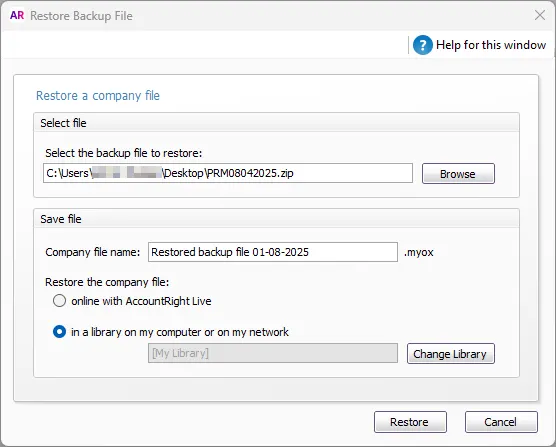
  4. Select the option to restore the company file in an AccountRight library – either locally on your PC or in a network location. To change the AccountRight library or library folder that the file will be restored to, click Change Library and select the location for the restored company file.

  5. Rename the restored company file’s name if required. A restored company file can't have the same name as an existing company file in the library.

    Example restoring of company file with backup file and company file names shown
  6. Click Restore.

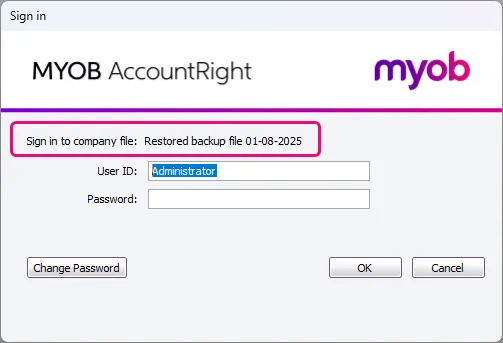
  7. Sign in to the restored company file.

    Sign in prompt with company filename highlighted

Don't change anything in your restored file

Any changes you make in your restored company file won't be reflected in your working company file. Remember, the restored company file is just a copy.

Restoring an offline backup online to replace your existing online file

Online company files only

If you restore an offline backup online, it will replace your online working company file. Any changes you’ve made to the online company file since the backup file was created will be overwritten.

This process cannot be undone. As a precaution, create a backup of the online company file before you replace it.

Check for changed transactions

Before replacing an online company file, you can check what changes have been made to it by running the Journal Security Audit report. This report shows what changes have been made in a selected period, for example, since the offline backup was created. More about checking for unauthorised transactions.

Online administrator access is required to do this task.

To replace your online company file with an offline backup

  1. Go to the File menu and choose Restore.

  2. Click Browse and choose the offline backup file you want to restore. If you see a list of online backups, make sure you've turned on the the offline backup and restore setting mentioned above.

    Can't find your backup file?

    If you've looked in all the obvious places (including external drives), try a Windows search on your computer. If you didn't change the file name when you made the back up, it will use the default AccountRight backup file name format. This name is a combination of MYOB and the date the back up was made. For example, if the back up was made on 31 December 2024, it will have the default name MYOB12312024.zip. That is, MYOBmm/dd/yyyy.zip.

    If you don't know the date, try searching the files on your computer for all .zip files or .zip files that include MYOB (such as MYOB AND .zip). For details about searching for files on your PC, see this Microsoft help article.

  3. If a password was entered when the backup was created, enter this password in the window that appears, and click OK.

  4. Select the option to restore the company file online with AccountRight Live.

    online backup

    The next step cannot be undone

    Any changes made to the company file since the backup was created will be overwritten.

  5. Click Restore and read the displayed warning about replacing your online file, then click Yes.

  6. Sign in using your MYOB account details to complete the restore.

Once complete, you can open the restored company file.